Specifc recognition of client and
operational areas
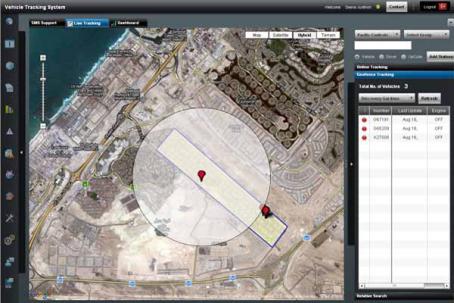
In order to allow operations staff to be able to monitor
specifc areas, geofences can be applied. These can be
set up manually by creating a polygon over a map of the
area itself. Alternatively, a named rectangular box can be
used if the site is a building or a wide geographical area
can also be set up and named. These zones can be set
up to send an SMS text or email alert to the feet manager
when a vehicle enters them.
Amendments to geofences can then be easily carried
out by authorised operational staff on an ongoing basis
(e.g. new vehicles, drivers and locations). Using mapping
data, we will be able to defne areas to coordinate with
those identifed by the customer, so that, in a single view,
the user can see the named area in which the vehicle is
working.
Vehicle Tracking
Through the tools described above, a vehicle can be
tracked in real-time, including direction, speed and engine
status. It is helpful to be able to recognise the latter, as a
vehicle could still be moving if it is being stolen, mounted
on, or towed by, another vehicle. It is possible to replay a
journey (by selecting vehicle details and a time period) at
various replay speed options.
A number of summary and detailed reports are available
to the user and these can be selected to be emailed
automatically from the system as PDF fles or created ad
hoc as required. The standard reports can be augmented
as necessary by bespoke reports created as part of the
customer service. Typical reports are listed here:
• Journey Report - Details all journeys within the selected
time period, by vehicle, group of vehicles or the whole
feet.
• Summary Report - Provides a Summary of all journeys
within the selected time period, by vehicle, group of
vehicles or the whole feet.
• Idle Report – Details time a location of engine idling
beyond a pre-defned elapsed time
• Summary and Detailed Reports are available for both
standard and user-defned queries
• Power Take Off Report - Reports the time and position
when the PTO has been activated
• Start/Stop Report - Displays a map and text item for
each stop of a selected minimum duration the vehicle
makes.
• Text Only Start/Stop - Lists only a text item for each
stop the vehicle makes.
• Exception Report - Details any situation defned as an
“exception”, e.g. when a vehicle is moved outside a
controlled time band.
GALAXY OPEN PLATFORM FOR M2M ENTERPRISE CITY MANAGEMENT - 48